


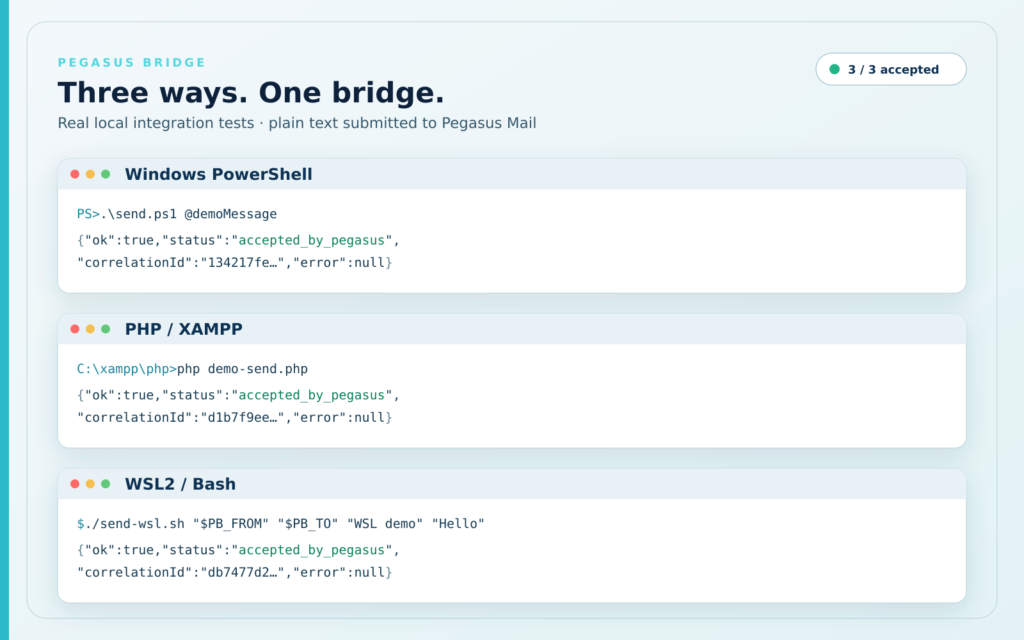
You can send plain-text email from Windows PowerShell through a running Pegasus Mail client by using Pegasus Bridge. The included PowerShell client submits the message to an authenticated local API; Pegasus Bridge validates it and passes it to Pegasus Mail. Your script does not need to store a separate SMTP password.
Important: Pegasus Bridge is not an SMTP server. Pegasus Mail and Pegasus Bridge must be running as the same signed-in Windows user. The identity currently selected in Pegasus Mail determines the actual sender.
What you need
- 64-bit Windows 10 or Windows 11
- Pegasus Mail for Windows, configured and running
- Pegasus Bridge 1.0.3 or later
- Windows PowerShell
- Pegasus Mail and Pegasus Bridge in the same interactive Windows session
During installation, keep the default Loopback only option for ordinary PowerShell use. The bridge listens locally and every send request requires the random access token created by Setup.
1. Check that Pegasus Mail is available
Invoke-RestMethod 'http://127.0.0.1:18765/v1/health'Continue only when the response reports "ok": true and "status": "ready". If it reports pegasus_unavailable, start Pegasus Mail and confirm that both programs run under the same signed-in Windows account.
2. Send a simple message from PowerShell
& 'C:\PMAIL\Pegasus Bridge\clients\send.ps1' `
  -From 'sender@example.com' `
  -To 'recipient@example.com' `
  -Subject 'PowerShell test' `
  -Text 'Hello from PowerShell!' `
  -ReplyTo 'replies@example.com'
Change the path if Pegasus Bridge is installed elsewhere. -ReplyTo is optional; when omitted, it defaults to -From.
3. Send multiple lines and Unicode text
Use a PowerShell here-string when the body contains multiple lines. This keeps real line breaks instead of placing the literal characters \n in the message.
$body = @'
First line

Third line after an empty line
Кирилица след нов ред
'@

& 'C:\PMAIL\Pegasus Bridge\clients\send.ps1' `
  -From 'sender@example.com' `
  -To 'recipient@example.com' `
  -Subject 'PowerShell / Кирилица' `
  -Text $body
Pegasus Bridge 1.0.3 was tested with real line breaks, an empty line and mixed Latin/Cyrillic plain text. The formatting was verified both in Pegasus Mail and after delivery to Outlook.
What the response means
A successful request returns HTTP 202 with the status accepted_by_pegasus. This means Pegasus Mail accepted the validated send operation. It does not prove final delivery: delivery still depends on Pegasus Mail, your mail provider and the recipient's server.
Security notes
- Do not expose Pegasus Bridge to the LAN, router or internet.
- Do not copy its access token into scripts, source control, logs or web pages.
- Use the included
send.ps1client instead of rebuilding token handling in each script. - Message content, recipients, subject and access token are excluded from normal Pegasus Bridge logs.
Current limitations
- Plain-text messages only; no HTML or attachments
- No CC, BCC or custom headers
- The calling script cannot select a Pegasus Mail identity
- A signed-in Windows user and a running Pegasus Mail client are required
- The product is intended for controlled local use on one computer
Troubleshooting
The health check says pegasus_unavailable
Start Pegasus Mail and verify that it runs under the same Windows user and in the same interactive session as Pegasus Bridge.
The sender address is not the one expected
The active Pegasus Mail identity controls the actual MIME From address. Select the required identity in Pegasus Mail before running the script. The -From value does not remotely switch identities.
The message contains \n instead of new lines
Pass actual line-break characters. The here-string example above is the simplest reliable method for a multi-line PowerShell message.
Use PowerShell with your existing Pegasus Mail setup
Pegasus Bridge costs €19 once, with no subscription, and includes a 14-day money-back guarantee.